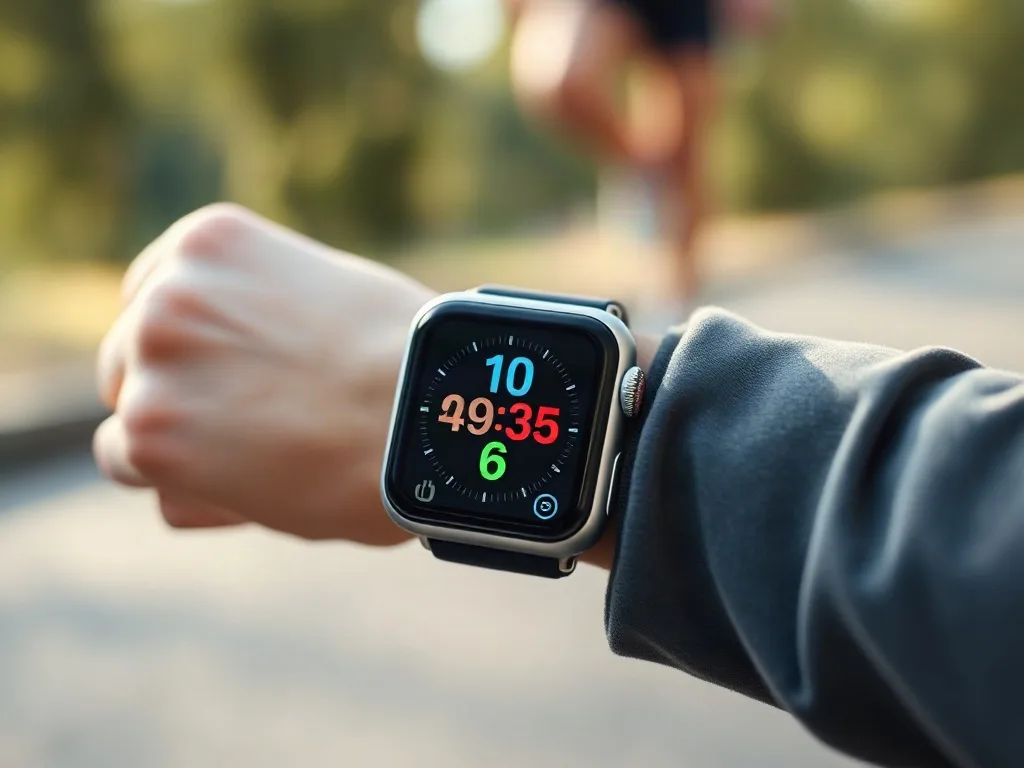
The Apple Watch has long been a favorite companion for runners, but the latest watchOS update pushes the device into truly game‑changing territory. Apple’s engineering team listened closely to the running community, translating feedback into features that sharpen accuracy, deepen data insight, and protect athletes on the road. Whether you’re a casual jogger tracking mileage or a seasoned marathoner fine‑tuning performance, the new tools can make every stride more informed and safer. This guide walks you through each major enhancement, shows how to set them up, and offers practical tips to integrate the watch into your regular training routine.
1. A holistic look at the update: what’s new for runners
The most recent watchOS version introduces a suite of running‑specific upgrades that sit alongside the broader health and productivity improvements. Key highlights include a refined GPS engine that reduces drift, a dynamic pacing engine that delivers real‑time alerts, and expanded heart‑rate analytics that go beyond simple zones. Apple also rolled out a new power‑saving mode designed for ultra‑long runs and bolstered safety tools such as fall detection that works even when you’re moving. Importantly, the update is compatible with Apple Watch Series 4 and later, ensuring that a large portion of the existing user base can benefit without needing new hardware.
From a software perspective, the changes are delivered through a combination of system‑level enhancements and a refreshed Workout app interface. The UI now displays more granular metrics on the main screen, while deeper data is accessible in the Health app and the new Metrics tab. For runners who sync with third‑party platforms like Strava or TrainingPeaks, Apple has simplified data export, making it easier to keep a single, comprehensive training log.
2. Enhanced GPS accuracy and route mapping
Accurate distance measurement is the backbone of any running app. The updated GPS engine leverages dual‑frequency GNSS (Global Navigation Satellite System) when paired with an iPhone that supports it, and it also uses the watch’s built‑in accelerometer to correct minor signal gaps. In practical terms, most users report a reduction in distance error from about 5‑10 % to under 2 % on typical city routes.
To activate the high‑precision mode, open the Settings app on your watch, navigate to Privacy → Location Services → Apple Watch → Precise Location, and toggle it on. When you start a run, the Workout app will automatically switch to the enhanced GPS profile if it detects a strong satellite signal. If you’re in a dense urban canyon, the watch will fall back to the standard profile but will still use accelerometer data to smooth the route.
- Check signal strength: Before a long run, glance at the Compass app on the watch; a green signal icon means the dual‑frequency system is active.
- Review route fidelity: After the workout, open the Health app, tap Browse → Activity → Workouts → Running → Show All Data, and select Map to see the plotted path. Small “jumps” indicate where the watch relied on accelerometer correction.
3. Real‑time pacing alerts and customizable zones
One of the most requested features from the running community was a flexible pacing alert system that could adapt to interval training, tempo runs, and race‑day strategies. The new update lets you set multiple pace zones within a single workout. For example, a runner can define a warm‑up zone at 9:00 min/km, a main set at 5:30 min/km, and a cool‑down at 8:00 min/km, with the watch delivering gentle haptic taps when you drift out of the target range.
Setting up custom zones is straightforward:
- Open the Watch app on your iPhone.
- Tap Workout → Running → Pace Alerts.
- Select Add New Zone and input the desired pace range and the alert style (vibration, sound, or both).
- Save the configuration and name it (e.g., “5K Tempo”).
During a run, swipe left on the workout screen to toggle between zones without stopping the timer. The watch will display the current zone, target pace, and a small progress bar indicating how close you are to the limit.
4. Advanced heart‑rate analytics for endurance training
The updated heart‑rate sensor firmware improves detection during rapid arm movements, a common source of error for runners. More importantly, Apple introduced three new metrics: Cardio Load, Recovery Index, and Heart‑Rate Variability (HRV) trend over the last seven days. Cardio Load quantifies the cumulative strain of a session, while the Recovery Index predicts how long you should rest before the next high‑intensity effort.
To view these metrics, finish a run and scroll to the bottom of the summary screen. Tap View Details to see a breakdown:
- Cardio Load: A score from 0‑100; values above 70 suggest a hard effort.
- Recovery Index: Presented as a percentage; lower percentages indicate a need for additional rest.
- HRV Trend: Shows day‑to‑day changes; a steady decline may signal overtraining.
These numbers are not diagnostic but serve as objective feedback. Use them to balance hard days with easy runs, and consider adjusting your training plan if the Recovery Index consistently falls below 60 % for several weeks.
5. Battery management and power‑saving modes for long runs
Ultra‑marathoners and trail runners often worry about the watch dying before they cross the finish line. The new “Extended Run” mode reduces background activity, dims the display to 10 % brightness, and limits GPS updates to once every three seconds instead of once per second. While this slightly reduces real‑time granularity, it can add up to three extra hours of battery life on a fully charged watch.
Activating Extended Run mode:
- Open the Workout app on the watch.
- Swipe left to the Settings wheel before you start.
- Select Power Saving → Extended Run.
- Start your workout as usual.
After the run, the watch automatically returns to normal power settings. If you prefer a middle ground, the “Balanced” mode offers a compromise between data frequency and battery consumption.
6. Seamless integration with third‑party running apps
Many runners rely on platforms like Strava, Garmin Connect, or TrainingPeaks for community features and advanced analytics. Apple has introduced a direct export option that sends the full workout file (including GPS trace, heart‑rate zones, and custom alerts) to these services without needing a manual CSV export.
To enable automatic sharing:
- On your iPhone, open Settings → Health → Data Access & Devices.
- Select the third‑party app you want to connect.
- Toggle Allow All Data for Workouts and Heart Rate.
- Confirm the connection in the third‑party app’s settings (usually under Connections or Integrations).
Once linked, every new run will appear in the external app within minutes, preserving the custom pacing zones and heart‑rate analytics you set on the watch. This eliminates the need for duplicate logging and ensures your training history stays unified.
7. Safety upgrades: fall detection, emergency SOS, and live location sharing
Running alone can be risky, especially on low‑light routes or remote trails. The update refines fall detection so that it remains active even while you’re moving at a steady pace. If the watch senses a sudden impact followed by immobility, it will prompt you to confirm you’re okay. If you don’t respond within 15 seconds, the watch automatically calls emergency services and sends your location to your emergency contacts.
To customize these safety features:
- Open the Watch app on your iPhone.
- Tap SOS → Fall Detection and ensure the toggle is on.
- Under Emergency Contacts, add the people you want to receive an automatic message.
Additionally, the new “Live Share” option lets you broadcast your real‑time location to a chosen contact for a set duration (e.g., 30 minutes). This is useful for group runs where one member wants to keep an eye on a solo participant. Activate Live Share from the Workout screen by tapping the three‑dot menu, selecting Share Live Location, and choosing the contact and time window.
8. Practical tips to maximize the new update
Even the most sophisticated software only shines when you use it correctly. Below are five actionable steps to help you get the most out of the Apple Watch’s running upgrades:
- Calibrate the watch before a big race: Run a 1‑kilometer loop in an open area with good GPS signal while the watch is fully charged. This helps the accelerometer learn your stride length, improving distance accuracy for future runs.
- Use custom pacing zones for interval workouts: Set up a “HIIT” zone at 4:30 min/km and a “Recovery” zone at 7:00 min/km. The watch will vibrate each time you cross the threshold, letting you focus on effort rather than glancing at the screen.
- Leverage Cardio Load to avoid overtraining: If your weekly Cardio Load exceeds 400 (the sum of daily scores), schedule a low‑intensity cross‑training day or a rest day to keep your Recovery Index healthy.
- Activate Extended Run mode for races longer than two hours: Test the mode on a long training run first to confirm the reduced GPS update frequency still meets your pacing needs.
- Enable live location sharing on solo evening runs: Choose a trusted friend or family member, set the share duration to match your expected finish time, and keep your phone in a pocket for backup communication.
By integrating these habits into your routine, the Apple Watch becomes a proactive coach rather than a passive data logger.
Advanced cadence and stride analysis with the Apple Watch
Beyond basic step counting, the latest watchOS exposes a high‑frequency accelerometer stream that can be interpreted as cadence (steps per minute) and, when paired with stride‑length models, as instantaneous ground‑contact time. To unlock this data, enable Advanced Motion in the Watch app under Privacy → Motion & Fitness. Once active, start a run and swipe left to reveal the Metrics pane, where a new Cadence gauge appears alongside heart‑rate.
Practical use cases:
- Tempo‑run fine‑tuning: If your target is 180 spm (steps per minute), set a visual cue by adding a Complication that displays the current cadence. When the gauge dips below 175 spm, the watch delivers a gentle tap, prompting you to shorten your stride or increase turnover.
- Hill‑repeat optimization: On steep inclines, cadence often drops while stride length shortens. By monitoring both metrics you can decide whether to maintain a consistent cadence (favoring a shorter stride) or accept a natural cadence dip to preserve energy.
- Injury‑prevention monitoring: A sudden, sustained increase in ground‑contact time may signal fatigue‑related form breakdown. If the Contact Time indicator (available via third‑party foot‑pod integration) exceeds your baseline by more than 10 %, consider ending the session early or inserting a recovery interval.
Edge‑case handling:
- Wrist‑wear position: For accurate cadence, wear the watch snugly just above the wrist bone. Loose straps cause the accelerometer to register extraneous motion, inflating step counts.
- Cold‑weather distortion: In sub‑zero conditions the sensor can momentarily freeze, creating brief gaps. The watch automatically interpolates missing data, but you can manually smooth the curve in the Health app by selecting Edit → Adjust Data → Interpolation.
- Mixed‑surface runs: Transitioning from pavement to trail introduces irregular vibration. If cadence spikes erratically, pause the workout, tap Reset Calibration in the Settings > Workout menu, and resume.
By treating cadence as a live coaching signal rather than a passive statistic, runners can develop a more efficient turnover, reduce impact forces, and ultimately improve race times.
Integrating external sensors and accessories for richer data streams
While the Apple Watch’s native sensors cover most casual needs, elite athletes often rely on dedicated hardware such as chest‑strap heart‑rate monitors, foot pods, or power meters. watchOS now supports Bluetooth Low Energy (BLE) profiles that expose raw telemetry directly to the Workout app. To add a device, open the Settings app on the watch, choose Bluetooth, and pair the accessory as you would with any other peripheral.
Examples of useful pairings:
- Polar H10 chest strap: Offers sub‑second R‑R interval precision, which the Watch translates into a smoother HRV curve. This is especially valuable for interval sessions where wrist‑based optics can lag behind rapid heart‑rate spikes.
- Garmin FootPod: Supplies stride‑length and vertical oscillation data that the Watch merges with its GPS trace, producing a composite metric called Running Efficiency Score. This score appears in the Metrics tab after the workout.
- Power meter (e.g., Wahoo RPM): Though traditionally a cycling tool, power meters can be strapped to the shoe for sprint‑training. The Watch displays instantaneous power output and integrates it into the Cardio Load calculation, giving a more nuanced view of muscular fatigue.
Edge‑case considerations:
- Battery drain: BLE devices consume additional power. If you plan a 4‑hour ultra, disable non‑essential accessories (e.g., music streaming) and enable the Low‑Power BLE mode found under Settings → Workout → External Sensors.
- Signal interference: In dense urban environments, multiple BLE devices can clash. Keep the watch’s firmware updated, and if you notice dropped data packets, move the accessory closer to the wrist or switch to a wired chest strap.
- Data synchronization lag: Some third‑party sensors transmit at 10 Hz, while the Watch processes at 1 Hz. To avoid misalignment, start the external sensor a minute before the workout and let it stabilize.
When configured correctly, external accessories turn the Apple Watch into a hub that aggregates biomechanical, physiological, and environmental data into a single, actionable post‑run report.
Trail‑running and elevation‑focused training with barometric and temperature data
Mountain and off‑road runners benefit from more than latitude and longitude; barometric pressure, altitude gain, and ambient temperature all influence perceived effort. The newest watchOS adds a Climb overlay that plots elevation change in real time, using the built‑in barometer calibrated against GPS‑derived altitude.
How to enable and interpret the overlay:
- Open the Workout app, select Outdoor Run, then tap the three‑dot menu and choose Climb View.
- The screen now shows a gradient‑colored line where green indicates flat terrain, yellow a moderate incline, and red a steep ascent.
- Tap the i icon to see cumulative ascent, descent, and the average grade percentage.
Practical training scenarios:
- Altitude acclimatization: Schedule three runs per week at increasing elevation (e.g., 1500 m, 1800 m, 2100 m). The Watch records the barometric pressure trend, which you can review in Health → Browse → Vitals → Pressure. A steady drop indicates successful acclimatization.
- Temperature‑adjusted pacing: On hot days (>30 °C) the body’s VO₂ max declines. Use the Temperature complication to set a dynamic pace offset: for every degree above 20 °C, add 5 seconds per kilometer to your target pace. The Watch will automatically adjust the pacing alerts.
- Technical descent drills: Enable the Descent Alert (Settings → Workout → Safety → Descent Alert). When the grade exceeds –15 % for more than three seconds, the watch vibrates, reminding you to maintain controlled foot placement.
Edge‑case tips:
- Barometer lag in tunnels: When you pass through a tunnel, pressure readings can spike. The Watch temporarily suspends altitude calculation and resumes once GPS lock is restored.
- Rapid weather changes: If a storm rolls in, pressure may drop dramatically, skewing ascent metrics. After the run, use the Correct Elevation button in the Health app to apply a post‑run calibration based on known waypoint elevations.
Integrating elevation and climate data transforms a simple distance log into a comprehensive performance profile that accounts for environmental stressors.
Pre‑run and post‑run routines powered by the Apple Watch
Running performance is heavily influenced by what happens before and after the stride. watchOS now bundles a suite of micro‑workouts and recovery tools that can be launched directly from the lock screen.
Pre‑run workflow:
- Tap the Warm‑up shortcut (customizable via the Shortcuts app). Choose a 5‑minute dynamic stretch routine that includes leg swings, high‑knees, and ankle circles. The Watch guides you with a countdown timer and haptic cues for each movement.
- Immediately after the warm‑up, open the Breathing app. Set a 1‑minute box‑breathing pattern (4‑4‑4‑4) to activate the parasympathetic nervous system, lowering resting heart‑rate before the run.
- Activate Ambient Noise monitoring (Settings → Sounds → Noise) to ensure you’re not training in a hazardous sound environment (e.g., heavy traffic). The Watch will alert you if decibel levels exceed 85 dB.
Post‑run recovery sequence:
- When you stop the workout, the Watch automatically opens a Cool‑down timer. Choose a 3‑minute walk‑back option that gradually reduces heart‑rate, preventing blood pooling.
- Launch the Sleep app and enable Wind‑down mode for 30 minutes. This dims the display, silences notifications, and plays a low‑frequency sound that promotes melatonin production.
- Review the Recovery Index (already covered) and then open the new Hydration shortcut. Input fluid loss (estimated via sweat rate) and the Watch calculates a personalized rehydration plan, sending a reminder to drink at set intervals.
Edge‑case scenarios:
- Running after a night shift: Use the Shift‑adjusted Sleep profile, which shifts the wind‑down start time based on your latest sleep log, ensuring you still receive adequate recovery cues.
- Cold‑weather stiffness: Add a 2‑minute “Joint Mobility” micro‑workout after the cool‑down, focusing on hip flexors and calves. The Watch tracks joint range of motion via the accelerometer and suggests adjustments.
- Post‑run nutrition timing: Enable the Meal Reminder in the Health app. After a run longer than 60 minutes, the Watch will prompt you 30 minutes later to consume a carbohydrate‑protein snack, aligning with the anabolic window.
Embedding these routines into the watch’s native interface turns a single device into a full‑cycle training partner.
Custom watch faces, complications, and shortcuts for seamless run management
Running doesn’t have to be interrupted by digging through menus. By designing a dedicated run‑mode watch face, you can see the most relevant data at a glance and launch actions with a single tap.
Step‑by‑step face creation:
- Open the Watch app on the iPhone, go to Face Gallery, and select the Modular Compact template.
- Assign the top left slot to Current Pace, the bottom left to Heart Rate, and the bottom right to Cadence. Use the middle slot for a Live Activity that displays the remaining distance.
- Enable the Tap to Start Workout shortcut by adding a custom complication that runs a pre‑configured “Run” shortcut (created in the Shortcuts app). This shortcut can auto‑enable Extended Run mode, set your preferred pacing zones, and start a GPS‑only workout.
Dynamic complications for edge cases:
- Battery‑aware complication: Shows a red icon when battery drops below 20 % and automatically switches the watch to Power‑Saving mode, preventing accidental shutdown mid‑run.
- Weather‑adjusted pace hint: Pulls data from the Weather app; if wind speed exceeds 15 km/h, the complication adds a “+5 s/km” tag to remind you to adjust effort.
- Live‑share status: Displays a small green dot when you have an active Live Share session, letting you verify that a friend is receiving your location without opening the Workout screen.
Shortcuts for advanced scenarios:
- Interval Builder: A shortcut that asks for the number of repeats, work interval duration, and rest duration. It then creates a multi‑segment workout that automatically switches pacing zones and vibrates at each transition.
- Race‑Day Pack: When you tap the “Race” shortcut, the watch silences notifications, switches to a high‑contrast face for better visibility, and starts a Race Pace workout that logs split times every kilometer.
- Post‑Run Analytics Export: Sends a CSV of the last workout to your email or a cloud storage folder, including GPS trace, cadence, power (if attached), and Cardio Load.
By curating a face and a set of shortcuts that match your training style, you eliminate friction and keep your focus on the run itself.
Multi‑sport training: transitioning smoothly between running, cycling, and swimming
Many athletes follow a tri‑sport or brick‑training regimen, where the ability to switch disciplines without missing data is crucial. watchOS now supports Auto‑Detect Multi‑Sport, a feature that recognizes a change in activity based on motion patterns and heart‑rate variance.
Activation steps:
- Open Settings on the watch, navigate to Workout → Multi‑Sport Detection, and toggle it on.
- Set a preferred order (e.g., Run → Bike → Swim) so the Watch knows which transition to expect.
During a brick session, the Watch will automatically pause the current workout, prompt you to confirm the new activity, and start recording the next sport with a single tap. All metrics are linked in a single “Training Session” entry in the Health app, allowing you to view cumulative Cardio Load, total elevation gain, and overall duration.
Real‑world example:
- Saturday brick: Begin with a 30‑minute tempo run, immediately transition to a 45‑minute bike ride, and finish with a 15‑minute pool swim. The Watch logs three distinct segments but aggregates them under one session titled “Saturday Brick”. Post‑session, you can export the combined data to TrainingPeaks for a holistic view of the training stress.
Edge‑case handling:
- Cold‑water swimming without a wetsuit: The Watch’s temperature sensor may drop below its operating range, causing a brief pause. Manually resume by tapping the screen; the data will be stitched together automatically.
- Rapid sport switches: If you hop from a run to a bike within 10 seconds, the auto‑detect may misclassify the activity as a single “Run”. In such cases, use the three‑dot menu to manually add a new sport segment.
- Battery budgeting for long bricks: Enable Balanced Power mode before the session; it reduces GPS frequency during the run but keeps full sampling for the bike, where speed data is more critical.
With these capabilities, the Apple Watch becomes a unified hub for all endurance disciplines, eliminating the need for multiple devices or manual data stitching.
Data‑driven coaching: building personalized training plans using Apple Health trends
All of the metrics collected by the Watch feed into Apple Health, which now offers a Trend Analyzer that applies moving‑average algorithms to variables such as Cardio Load, HRV, and VO₂ max. By reviewing these trends, athletes can construct evidence‑based training cycles.
Creating a 12‑week plan:
- Open the Health app, tap Browse → Heart → Heart‑Rate Variability. Observe the 4‑week rolling average; a steady rise suggests good recovery capacity.
- Switch to Fitness → Cardio Load. Identify weeks where the load exceeds 120 % of the 4‑week average; mark those as “hard weeks”.
- Using the Shortcuts app, create a “Plan Builder” shortcut that asks for your target race distance and desired peak Cardio Load. The shortcut then suggests a weekly distribution: 2 easy runs, 1 interval day, 1 long run, and 2 rest days, scaling the load based on the trend data.
Example scenario:
- Week 1: Cardio Load 350, HRV trending upward → schedule a moderate‑intensity week with a 15‑km long run.
- Week 4: Cardio Load spikes to 480, HRV dips 5 % → insert a recovery week with a 10‑km easy run and a yoga session.
- Week 8: HRV plateau, Cardio Load stable → introduce a “peak” week with two interval sessions (5×800 m at 4:45 min/km) and a 30‑km long run.
Edge‑case advice:
- Travel disruptions: If you miss a scheduled workout, the Plan Builder can automatically shift the remaining sessions forward, preserving the overall load balance.
- Illness detection: A sudden HRV drop of more than 15 % over two consecutive days triggers a “Sick‑Day” flag in the shortcut, prompting you to replace the day’s run with a low‑impact activity.
- Data gaps: When a workout isn’t recorded (e.g., battery died), the shortcut asks you to input an estimated duration and perceived effort, filling the gap in the trend analysis.
By leveraging the Apple Watch’s continuous data stream and the Health app’s analytical tools, runners can transition from intuition‑based training to a systematic, data‑backed approach that adapts to their physiological signals in real time.
Frequently Asked Questions
Q1: Does the new GPS accuracy require an iPhone nearby?
A: The dual‑frequency GNSS works independently on the watch, but it performs best when the watch can supplement satellite data with the iPhone’s Wi‑Fi and cellular connections. If you run completely offline (e.g., in a remote area), the watch still provides accurate tracking, though you may see a slight increase in variance compared with paired mode.
Q2: Can I use the pacing alerts while listening to music on Apple Music?
A: Yes. The alerts are delivered as haptic vibrations that bypass the audio channel, so they work even with headphones or earbuds at maximum volume. You can also enable a subtle sound cue in Settings → Workout → Pace Alerts if you prefer an audible reminder.
Q3: How does the Recovery Index differ from traditional heart‑rate recovery measurements?
A: Traditional HR recovery looks at the drop in beats per minute during the first minute after a run. The Recovery Index combines that drop with the overall Cardio Load, sleep quality (as recorded by the Sleep app), and recent HRV trends, giving a more holistic view of how prepared your body is for another hard effort.
Q4: Will the power‑saving modes affect the accuracy of my heart‑rate data?
A: In Extended Run mode, the watch still samples heart‑rate every second, but it reduces the frequency of GPS points. Heart‑rate accuracy remains unchanged; only the spatial resolution is affected.
Q5: Is the fall detection feature safe for runners who frequently stumble on uneven terrain?
A: Apple refined the algorithm to differentiate between a brief stumble and a genuine fall that results in prolonged immobility. If the watch detects a stumble, it will prompt you with a brief “Are you okay?” vibration. Only if you remain unresponsive for the full 15‑second window will it trigger emergency services.
Related posts:
 Savannah Guthrie’s Olympic Tennis Workout
 This Rowing App Promises to Replace Your Gym Membership
 Apple-Based Breakfast Ideas
 The Best Running App for Every Type of Runner
 UV Index Tracking with Apple Watch
 6 Smart Ways to Use Your Apple Watch for Fitness Motivation
 Instant Pot Apple Butter Recipe
 Post-Run Nutrition Guide