
Spending eight hours a day sitting at a desk takes a toll on your body and mind. Poor posture, inadequate lighting, and uncomfortable furniture create a cascade of problems: back pain, eye strain, fatigue, and declining focus. Yet transforming your home office doesn’t require a complete renovation or substantial expense. Strategic swaps—replacing one element at a time with something more purposeful—can meaningfully improve how you feel and perform.
Key takeaways
- Prioritize a chair with proper lumbar support to maintain spine alignment and prevent chronic back pain.
- Use height-adjustable desks or risers to alternate between sitting and standing, improving circulation and posture.
- Layer your lighting with natural sources and task lamps to reduce eye strain and regulate your circadian rhythm.
- Implement the 20-20-20 rule and screen filters to mitigate digital fatigue and manage blue light exposure.
- Clear visual clutter and add biophilic elements like plants to reduce cognitive load and enhance mental well-being.
The home office became a permanent fixture for millions of people, and with it came an opportunity to design a workspace that actually supports health. Unlike traditional office environments where you’re stuck with what’s provided, your home office is yours to shape. Small changes compound. A better chair reduces strain. Natural light improves mood and alertness. A standing desk option breaks up sedentary time. Movement breaks become easier when your setup invites them. Over weeks and months, these shifts reshape your daily experience.
This guide walks through seven practical swaps you can make to your home office setup. Each addresses a specific pain point and offers concrete alternatives. The goal is to help you build a workspace that supports energy, focus, and physical wellbeing—without overwhelming you with choices or requiring a massive budget.
Replace Your Chair with One That Supports Your Spine
Your chair is the foundation of your home office. Most people work in whatever they have—a dining chair, an old office chair from a previous job, or something picked up at a garage sale. These rarely align with your body’s needs.
A supportive chair maintains the natural curve of your spine, reduces pressure on your lower back, and allows your feet to rest flat on the floor with your knees at 90 degrees. Look for chairs with adjustable seat height, lumbar support, and armrests that allow your shoulders to relax. You don’t need an expensive gaming chair or luxury brand; mid-range ergonomic office chairs from mainstream retailers work well.
When evaluating a chair, sit in it for at least ten minutes if possible. Notice whether your lower back feels supported or if you’re leaning forward. Check if your hips are slightly higher than your knees. Pay attention to your neck and shoulders—they should feel relaxed, not hunched. If you’re already experiencing back pain, consider a chair with extra lumbar support or one that reclines slightly to redistribute pressure.
If budget is tight, prioritize lumbar support over appearance. A $200 chair with proper back support beats a $50 chair that leaves you aching by 3 p.m. You spend more time in this chair than on your bed; it deserves investment.
Swap Overhead Lighting for Layered, Natural Light
Harsh overhead fluorescent or bright LED lighting creates eye strain, headaches, and fatigue. It also signals to your brain that it’s the middle of a windowless office—not conducive to the relaxation your nervous system needs during breaks.
Prioritize natural light whenever possible. Position your desk near a window, but angle your monitor so sunlight doesn’t create glare on the screen. If your workspace doesn’t get good natural light, invest in a full-spectrum light bulb that mimics daylight. These cost $15–40 and fit standard lamps.
Layer your lighting by combining overhead light (dimmed or used only when necessary) with task lighting—a desk lamp that illuminates your work surface without glare. Add ambient lighting like a soft floor lamp in the corner to reduce contrast between your bright monitor and dark surroundings. This combination reduces eye strain and creates a more pleasant environment.
If you work during early morning or evening hours when natural light isn’t available, a light therapy lamp on your desk for the first two hours of work can help regulate circadian rhythms and improve alertness. Position it at arm’s length to the side of your monitor, not directly in your eyes.
Upgrade Your Desk to One That Allows Movement
A static desk encourages static posture. Sitting in the same position for hours compresses your spine, reduces circulation, and makes muscles tight. A desk that adjusts between sitting and standing breaks this pattern without requiring you to move to a different room.
Electric standing desks have become more affordable—quality models cost $300–600. They let you shift between sitting and standing throughout the day, typically with a push-button or programmable preset. Manual crank desks are cheaper but require more effort to adjust. Even a basic model that moves between two heights (your sitting height and a comfortable standing height) makes a difference.
The ideal pattern isn’t standing all day—that’s tiring and just as static. Instead, alternate every 30–60 minutes. Sit for an hour, stand for 20 minutes, sit again. This rhythm improves circulation, reduces fatigue, and gives your posture variety. If a height-adjustable desk isn’t feasible, a desk riser can elevate your monitor and keyboard to reduce neck strain, or a standing desk converter sits on top of your existing desk and lifts your work surface.
Test the desk’s stability at its highest point; wobbling creates tension and makes typing frustrating. Check that the height range fits both your sitting and standing needs—not all desks accommodate all body types equally.
Replace Blue Light Exposure with Screen Filters or Eyewear
Blue light from screens can suppress melatonin production, making it harder to wind down after work. It also contributes to digital eye strain—dry, tired eyes and difficulty focusing.
If you work until evening, apply a blue light filter to your monitor after 3 p.m., or wear blue light blocking glasses during afternoon and evening work sessions. These cost $20–60 and noticeably reduce eye strain for many people. You don’t need an expensive brand; basic options work fine.
Pair this with the 20-20-20 rule: every 20 minutes, look at something 20 feet away for 20 seconds. This simple habit reduces eye fatigue significantly. Set a timer on your phone or use a focus app that reminds you.
Additionally, reduce monitor brightness to match your room’s ambient light. A monitor that’s much brighter than your surroundings forces your eyes to work harder and increases strain. Most monitors have brightness controls accessible through the on-screen menu or keyboard shortcuts.
Swap Your Desk Surface for One with Better Ergonomics
Your keyboard and mouse position affects your wrists, shoulders, and neck. Typing on a keyboard at the wrong height forces your wrists to bend unnaturally, creating tension and increasing repetitive strain injury risk.
Ideally, your keyboard and mouse should sit at a height that allows your elbows to rest at 90 degrees with your shoulders relaxed. Your wrists should be neutral—not bent up, down, or to the side. If your desk is too high, a keyboard tray that slides underneath lowers your typing surface. If it’s too low, a desk riser lifts it.
Invest in an ergonomic keyboard and mouse if you spend significant time typing or clicking. Ergonomic keyboards are split or curved to keep your wrists neutral. Vertical mice reduce forearm rotation. These don’t need to be expensive; $30–50 options work well. Mechanical keyboards with good key travel and response feel better than shallow laptop-style keyboards and may reduce wrist fatigue.
A wrist rest in front of your keyboard provides support during typing, and a mouse pad with a wrist rest does the same for your mouse hand. These simple additions reduce strain on hands and wrists throughout the day.
Replace Distracting Noise with Intentional Sound
Open-plan home environments bring noise—family members, pets, neighborhood sounds, delivery trucks. Constant low-level noise divides your attention and increases stress, even when you don’t consciously notice it.
If you can’t control noise sources, create a sound barrier. Noise-canceling headphones block ambient sound and let you focus. They’re worth the investment if you struggle with concentration. Alternatively, use noise-masking apps or white noise machines that play consistent, neutral sounds like rain or ocean waves. These mask distracting sounds while being less intrusive than music.
If you enjoy background music, choose instrumental options or genres without lyrics—lo-fi beats, classical, ambient. Music with lyrics engages your language processing and makes focused work harder. Keep volume low enough that you could hear someone speaking to you if needed.
For calls or video meetings, a noise-canceling microphone reduces background noise so your voice comes through clearly without you having to speak louder. This matters for your vocal health and your listeners’ experience.
Swap Sedentary Breaks with Movement-Based Ones
Taking breaks is essential, but not all breaks are equal. A 15-minute break spent scrolling social media doesn’t refresh you. A break built around movement—walking, stretching, light exercise—restores energy and mental clarity.
Set a timer for every 60–90 minutes of focused work and take a 5–10 minute movement break. This might include a short walk around your home or yard, ten minutes of stretching, a few sets of bodyweight exercises, or yoga. The goal isn’t intense exercise; it’s to change position, increase blood flow, and give your eyes a break from the screen.
Keep resistance bands, a yoga mat, or light dumbbells near your desk so movement feels accessible. If outdoor space is available, step outside during breaks—natural light and fresh air provide both physical and mental benefits that indoor breaks don’t.
These breaks improve afternoon focus and reduce the end-of-day mental fatigue that makes people feel wiped out despite sitting all day. Movement also improves sleep quality, which affects productivity the following day.
Upgrade Your Monitor Setup to Reduce Neck Strain
Monitor height and distance affect neck strain significantly. If your screen sits too low, you hunch forward. Too high and you crane your neck upward. Both create tension that accumulates into headaches and shoulder pain.
Position your monitor so the top of the screen is at or slightly below eye level when you’re sitting upright. The screen should be an arm’s length away—roughly 20–26 inches. If you use a laptop, the built-in screen is likely too low. A laptop stand raises the screen to proper height; pair it with an external keyboard and mouse to prevent hunching.
If you use multiple monitors, position them so you’re looking at the primary screen straight ahead and slightly turn your head for secondary screens. A monitor arm mount lets you adjust height and angle precisely, accommodating different working positions throughout the day.
Check your setup by sitting naturally and looking straight ahead—your eyes should land on the middle-upper portion of the screen. If you find yourself tilting your head up or down, adjust until your head feels neutral.
Create a Workspace That Supports Your Biology
These swaps work best as a system. Better lighting improves mood and alertness, making you more likely to take movement breaks. A supportive chair and ergonomic desk setup reduce pain, so you’re more comfortable during those breaks. Less distracting noise lets you focus and finish work earlier, giving you more evening time to wind down before bed—which improves sleep and productivity the next day.
Start with the swap that addresses your biggest pain point. If your back aches, prioritize the chair. If eye strain bothers you most, upgrade lighting first. Once you’ve adjusted to that change, add another. Within a few months, your entire setup will support your health instead of working against it.
Optimize Your Desk Organization for Mental Clarity and Efficiency
A cluttered desk fragments attention and increases cognitive load. Every item in your visual field—unpaid bills, old notes, random objects—registers as an incomplete task in your mind, consuming mental resources even when you’re not consciously aware of it. This phenomenon, called “cognitive clutter,” measurably reduces focus and increases decision fatigue throughout the day.
Create zones on your desk based on function: a work zone for your primary task, a reference zone for documents or materials you need today, and a clear zone where your eyes can rest. Everything else belongs in drawers, shelves, or storage outside your immediate workspace. The goal isn’t minimalism for its own sake; it’s removing visual competition so your brain can dedicate resources to actual work.
Implement a daily reset ritual—spend five minutes at the end of each workday clearing your desk back to baseline. This takes minimal time but creates a psychological shift: you leave work cleanly, and you return to a fresh space the next morning. This small boundary between work and personal time improves your ability to mentally disengage when the workday ends.
For items you use frequently, vertical storage works better than horizontal. Wall-mounted shelves, pegboards, or magnetic strips keep supplies visible and accessible without consuming desk real estate. Frequently-used reference materials benefit from a small shelf or file organizer positioned at arm’s length, separate from your active work surface.
Cable management directly affects both clutter perception and air circulation. Bundles of visible cables create visual chaos and can restrict airflow around electronics, causing them to work harder and generate heat. Use cable clips, spiral wrapping, or adhesive-backed trays routed behind your desk. Label each cable at both ends so you can identify which device each one serves—this saves troubleshooting time if you need to unplug something or reconfigure your setup.
Integrate Biophilic Elements to Reduce Stress and Improve Focus
Biophilic design—incorporating natural elements into indoor spaces—measurably reduces stress, improves mood, and enhances cognitive function. Research shows that even looking at images of nature for a few seconds restores mental energy. Actual plants and natural materials create stronger effects.
A small plant or two on your desk or shelf requires minimal maintenance and provides psychological benefit. Low-maintenance options like pothos, snake plant, or ZZ plant tolerate indoor office lighting and irregular watering. Caring for a plant—watering it weekly, noticing new growth—creates a small ritual that anchors you to the present moment and provides a sense of accomplishment separate from work tasks.
Beyond plants, introduce natural materials into your workspace. A wooden desk surface feels more pleasant than laminate or metal. A cork or natural rubber mouse pad is warmer to the touch than plastic. A stone or wooden desk organizer provides subtle sensory richness. These changes cost little or nothing if you’re already replacing items, but they shift the tactile and visual experience of your workspace toward the natural world rather than the synthetic.
Natural light, discussed in the main article, amplifies biophilic benefits. If you position your desk near a window with a plant visible from your seated position, you’re creating multiple nature-connection points throughout your day. During difficult or frustrating work tasks, a brief glance at the plant and natural light outside provides a physiological reset—a brief parasympathetic activation that reduces stress and restores some mental energy.
Water elements also have calming effects. A small tabletop fountain or even a water bottle with a pleasant design reminds your nervous system of natural water sounds and movement. The sound of flowing water activates relaxation responses in the brain, partially offsetting the tension of focused computer work.
Reconfigure Your Setup for Video Meeting Confidence
Video calls introduce ergonomic and psychological challenges distinct from regular computer work. The camera angle affects both how you look and how you feel about yourself on camera. If your laptop camera is positioned below eye level, you appear to be looking down, creating an unflattering angle that also encourages poor posture—rounding your shoulders and hunching forward to see the screen better.
Raise your camera to eye level using a laptop stand, monitor arm, or even books stacked under your monitor. Your eyes should look directly into the camera, not down at it. This achieves two things simultaneously: you present yourself more professionally, and you naturally maintain better posture. If you use an external webcam, mount it on top of your monitor or on an arm that positions it at eye level.
Position your camera so your face occupies roughly one-third of the frame, with some space above your head and to the sides. This framing feels natural and allows you to gesture without appearing cramped. Test your camera angle before important calls by starting the video app and reviewing your preview—make adjustments until the angle feels natural.
Lighting for video calls differs from regular working lighting. You want light to illuminate your face evenly, not create shadows or harsh contrast. Position a light source in front of you (never behind, as that creates backlighting and makes you appear as a silhouette). A simple desk lamp angled slightly upward and to the side works well. Avoid having bright windows directly behind you unless the window is dimmed with shades.
Sound quality matters more than camera quality in video calls. Use an external microphone if your computer’s built-in mic picks up keyboard noise, fan noise, or other background sounds. A USB microphone ($20–50) positioned slightly to the side of your mouth captures your voice clearly while rejecting side and rear noise. Pair this with your existing headphones for clear two-way communication.
Finally, create a minimal backdrop that doesn’t distract from your face. If your background is messy, position your desk so the wall behind you is relatively plain, or use video call software’s background blur feature. This removes cognitive load from viewers who might otherwise be distracted or judging your space.
Establish Thermal Comfort to Maintain Focus and Physical Health
Temperature affects cognitive function and physical comfort more than many people realize. Too hot and you feel sluggish; too cold and you’re tense. The optimal temperature for focus is typically 69–72°F (21–22°C), but individual preferences vary. Regardless of your ideal, fluctuating temperatures throughout the day create distraction and fatigue.
If you can’t control your home’s central heating and cooling, create microclimate comfort in your workspace. A small space heater directed toward your desk maintains warmth if your room is cold. Position it safely away from flammable materials and turn it off when you leave. A desk fan provides localized cooling and can be aimed to create air circulation without cooling your entire room.
Layered clothing helps you adapt as your body temperature naturally fluctuates. A cardigan or blanket that you can put on or remove without leaving your workspace prevents the distraction of trying to regulate your comfort by adjusting the home’s thermostat. This keeps you focused and prevents interrupting your work rhythm.
Humidity levels also matter. Very dry air (below 30% humidity) causes dry skin, scratchy throat, and respiratory irritation. Very humid air (above 60%) feels stale and can promote mold growth. If your workspace feels uncomfortably dry, a small humidifier running during working hours maintains healthier air. In humid climates, adequate air circulation—a fan, open window, or ventilation—prevents that stuffy feeling that makes you want to leave your desk.
Thermal comfort becomes especially important during long, focused work sessions. If you’re uncomfortable, your body allocates resources to managing that discomfort rather than to the task at hand. Even slight discomfort—a 2-degree temperature deviation from your preference—measurably reduces productivity. Small investments in thermal comfort yield significant returns in focus and mood.
Design Acoustic Privacy to Support Concentration and Confident Communication
Beyond noise masking (covered in the main article), physical acoustic treatment improves both your concentration and your ability to communicate without broadcasting your work to others in your home. Hard surfaces—drywall, wood, tile—reflect sound and amplify noise. Soft, porous materials absorb it.
Add sound-absorbing elements to your workspace without expensive professional treatment. Heavy curtains or acoustic panels behind or beside your desk absorb sound traveling to and from your seated position. A thick area rug under your desk and chair absorbs sound reflection from the floor. Bookshelves, filled with books, act as acoustic treatment—the varied surface and interior pockets of air absorb sound effectively. This works well as a functional decoration.
If you take frequent video calls or need to focus during periods when others are home, a portable folding partition or acoustic panel positioned behind your desk creates a semi-private sound barrier. These cost $30–100 and can be repositioned or removed easily.
For shared homes, establish clear communication boundaries. Let household members know your working hours and when you’re unavailable. A simple “do not disturb” sign on your door or a visual indicator (a light that changes color) signals that you’re in focused work mode. This reduces interruptions and the cognitive load of wondering whether someone will disrupt you.
Acoustic privacy also affects your confidence during calls. If you know that everything you say won’t be heard throughout your home, you’re more relaxed and communicate more naturally. This psychological shift improves call quality and reduces stress during professional communication.
Develop Transition Rituals to Mentally Shift Between Work and Personal Time
Many remote workers struggle with work-life boundaries because they lack the physical transition that commuting provides. Walking from your desk to another space is less psychologically distinct than leaving an office building. Without clear transitions, work stress lingers into evening, affecting sleep, relationships, and next-day focus.
Create a closing ritual that signals the workday’s end. This might include closing your laptop, dimming your desk light, putting your phone on do-not-disturb, or physically leaving your office and shutting the door. The specific action matters less than consistency and intentionality. Your brain learns to associate this ritual with work ending, making it easier to psychologically disengage.
Pair this with a brief physical transition. Walk around your home, step outside, change your clothing, or do five minutes of gentle stretching. This physical movement combined with the spatial transition from office to living space reinforces the mental boundary between work and personal time.
In the morning, reverse the ritual. Open your blinds, turn on your desk lamp, review your calendar, and set your phone’s do-not-disturb to end at a specific time. This signals to your brain that work mode is starting. These bookends to your workday create psychological distance even in a home office.
The benefits extend beyond the workday. When you genuinely leave work—mentally and physically—you’re more present during personal time. You recover more fully overnight. You return to work the next day more refreshed. Over weeks and months, these small transition rituals significantly improve overall wellbeing and sustainable productivity. Without them, the blurred boundary between work and home erodes both professional focus and personal recovery.
Personalize Your Space to Increase Motivation and Ownership
Humans are motivated by spaces that feel personally meaningful. A generic office setup—even if ergonomically perfect—feels like a job obligation. A space that reflects your personality and interests feels like something you’ve chosen, increasing intrinsic motivation and engagement.
This doesn’t mean cluttering your desk; personalization works best when intentional. Choose one or two meaningful items: a framed photo of someone important to you, a small object from travel, a piece of art that resonates with you, or a memento representing a goal you’re working toward. These should be visible enough to register when you’re looking around but not so numerous that they create visual clutter.
Color psychology affects mood and focus. Cool colors (blues, greens) promote calm and concentration. Warm colors (oranges, reds, yellows) increase energy and creativity. Consider whether you want to energize yourself or calm yourself, and add color through a desk pad, wall art, or lamp. A 30-minute session working in an environment with your preferred colors increases productivity more than the same session in a neutral environment.
Your space should also evolve with your work and interests. Rotating artwork, updating photos, or changing a plant keeps your environment fresh and prevents monotony. This small change—taking five minutes monthly to shift one element—renews your psychological relationship with your space and prevents adaptation fatigue, where a familiar space stops registering as interesting or motivating.
The goal is ownership: this is your space, designed to support your work and reflect your values. When your workspace feels like an extension of yourself rather than a generic office, you’re more engaged, more motivated, and more willing to maintain its setup over time. This increases the likelihood that you’ll actually use the ergonomic improvements and movement breaks instead of gradually sliding back into unhealthy defaults.
Frequently Asked Questions
How much should I spend on a home office chair?
Ergonomic office chairs with good lumbar support typically range from $200–500. This is worth prioritizing because you spend roughly 2,000 hours per year sitting in this chair. A quality chair reduces back pain and neck strain, which justifies the expense. Budget brands around $100 rarely provide adequate support, while luxury chairs over $1,000 often offer features you won’t use. Mid-range options deliver the best value.
Can I use a standing desk all day?
No. Standing all day is just as problematic as sitting all day—it causes different strain, particularly on feet, knees, and lower back. The benefit of a height-adjustable desk comes from alternating between sitting and standing. A good rhythm is 30–60 minutes of sitting followed by 15–20 minutes of standing, repeated throughout the day. This variation prevents the cumulative strain of static posture in either position.
Do blue light glasses actually work?
Blue light glasses reduce eye strain and may help with sleep if you use screens in the evening. The evidence that blue light itself is harmful is mixed, but reducing overall screen strain—through glasses, filters, brightness adjustment, and the 20-20-20 rule—noticeably improves comfort for most people. They’re worth trying since they’re inexpensive, and you can return them if they don’t help your specific situation.
What’s the best way to organize cables and clutter?
Cable management affects both aesthetics and air circulation around your desk. Use cable trays or clips to route wires behind or under your desk, keeping them out of sight. Label cables at both ends so you know what each one connects to. A power strip with on-off switch consolidates plugs and lets you cut power to everything at once. Clutter on your desk divides attention; keep only essential items within arm’s reach and store everything else in drawers or shelves. This improves focus and makes your workspace feel calmer.
How often should I change positions or take breaks?
Every 60–90 minutes, take a 5–10 minute break that involves movement and screen time cessation. If you use a standing desk, alternate sitting and standing every 30–60 minutes. Throughout your workday, practice the 20-20-20 rule for eyes: every 20 minutes, look at something 20 feet away for 20 seconds. These rhythms prevent the accumulation of strain and fatigue. You might use a timer or focus app to prompt these breaks until they become automatic habits.
Related posts:
 Mood Makeover: The Office Supplies That Will Transform Your Workday Vibes
 Master Chair Pose Without Falling Over: A Yoga Guide for Real People
 Desk Yoga for Back Pain Relief
 Sitting Too Much Might Lead to Memory Loss
 Is Eating While Standing Bad?
 Why Sitting All Day at Work Is Slowly Killing Your Health
 Managing Hip Pain from Sitting
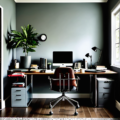 Creative Home Office Desk Ideas