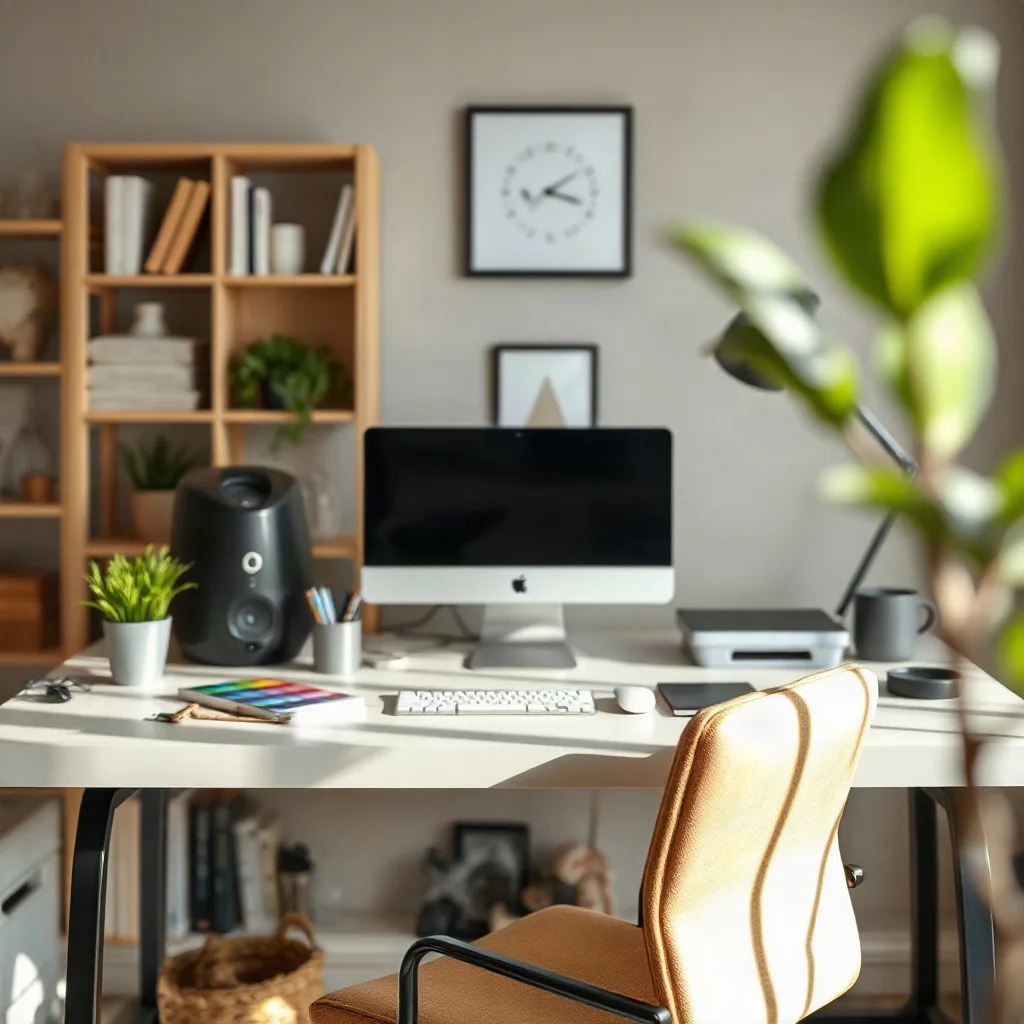
Creating a comfortable home office starts with understanding how your body interacts with the space you work in. Small adjustments to desk height, monitor placement, and seating can prevent fatigue and support long‑term health.
Choose the Right Desk and Chair
A desk that allows your forearms to rest parallel to the floor while typing reduces shoulder tension. Look for a surface height between 28 and 30 inches for most adults, or select an adjustable model that you can raise or lower. Pair the desk with a chair that offers lumbar support, seat depth adjustment, and a breathable mesh back. Sit so your feet rest flat on the floor or on a footrest, knees at roughly a 90‑degree angle, and the backrest follows the natural curve of your spine.
If you share the workspace with a partner, consider a sit‑stand converter that lets each person switch between sitting and standing without moving furniture. Test the setup for a full workday before committing; comfort often reveals itself after several hours.
Set Monitor Height and Distance
Position the top of the screen at or slightly below eye level so you can view the center of the display with a slight downward gaze. Keep the monitor about an arm’s length away — roughly 20 to 30 inches — to avoid leaning forward. If you use multiple screens, align them side by side at the same height and angle the inner edges toward you to minimize neck rotation.
Use a monitor riser or a stack of sturdy books to achieve the correct height. For laptop users, a separate keyboard and mouse combined with a laptop stand creates the same ergonomic geometry as a desktop monitor.
Keyboard and Mouse Placement
Place the keyboard directly in front of you with the elbows close to the body and bent at about 90 degrees. A negative‑tilt keyboard tray can help keep wrists straight. The mouse should sit at the same level as the keyboard, within easy reach, so you do not have to stretch or twist the shoulder.
Consider an ergonomic split keyboard or a vertical mouse if you experience wrist discomfort. Keep frequently used shortcuts on the keyboard to reduce repetitive reaching.
Lighting and Glare Control
Good lighting reduces eye strain and improves mood. Position your desk perpendicular to windows to avoid direct glare on the screen. Use a task lamp with adjustable brightness and a warm color temperature for focused work, and supplement with ambient lighting that eliminates harsh shadows.
Install a matte screen filter if reflections persist. Adjust the monitor’s brightness to match the surrounding light level; a simple test is to view a white page — it should appear as bright as the paper around you.
Organize Cables and Accessories
Cluttered cables create tripping hazards and visual distraction. Route power cords, USB cables, and monitor leads through a cable tray or zip ties mounted under the desk. Label each cord with a small tag for quick identification.
Keep essential accessories — notepads, pens, reference documents — within a 12‑inch radius of your primary work zone. Store less‑used items in drawers or shelves to maintain a clean surface.
Incorporate Movement Breaks
Static posture, even when perfectly aligned, can lead to stiffness. Set a timer for every 45 to 60 minutes to stand, stretch, or walk for two to three minutes. Simple moves like shoulder rolls, wrist flexor stretches, and seated spinal twists reset muscle tension.
If you have a sit‑stand desk, alternate between sitting and standing every hour. Gradually increase standing time to avoid lower‑back fatigue. A brief walk around the room also boosts circulation and mental clarity.
Personalize for Comfort and Productivity
Add elements that make the space inviting without compromising ergonomics. A small plant improves air quality and provides a visual break. Choose a neutral color palette for walls and furniture to reduce visual noise, then add a single accent color through a mug or artwork.
Adjust the temperature and airflow to a comfortable range — typically 68 to 72 degrees Fahrenheit. Use a quiet fan or a portable heater if the room’s climate control is insufficient.
Maintain a Healthy Posture Routine
End each workday with a quick posture check: sit tall, shoulders relaxed, chin slightly tucked, and engage the core lightly. Perform a five‑minute routine of cat‑cow stretches, chest openers, and hip flexor releases to counteract prolonged sitting.
Track any recurring discomfort in a journal. Patterns such as wrist soreness after long typing sessions signal a need for equipment tweaks or a professional ergonomic assessment.
Acoustic Comfort and Noise Management
Sound influences concentration as much as lighting does. A quiet backdrop reduces cognitive load and prevents the subtle tension that builds when you strain to hear a colleague on a call. Start by identifying the dominant noise sources: traffic, HVAC, household appliances, or neighboring conversations. Heavy curtains or acoustic panels mounted on the wall behind the desk absorb mid‑frequency reflections. A dense rug on a hard floor adds low‑frequency damping and also defines the work zone visually.
For video meetings, a directional USB microphone with a cardioid pickup pattern isolates your voice while rejecting room echo. Position the mic about six inches from your mouth, slightly off‑axis, and use a pop filter to tame plosives. Pair the microphone with a closed‑back headset for monitoring; this prevents audio bleed into the microphone and lets you hear participants clearly without raising the system volume.
If total silence is unrealistic, a low‑level white‑noise generator or a playlist of ambient sounds can mask intermittent spikes. Set the level just below the threshold of perception — around 35 to 40 dB SPL — so it fades into the background. Smart speakers with built‑in noise‑masking modes can be scheduled to activate during core work hours and turn off for breaks.
Edge case: shared living spaces where a partner works on a different schedule. Negotiate a “quiet window” and use a visual cue such as a colored light strip on the desk to signal when deep‑focus mode is active. This simple protocol respects both parties’ acoustic needs without permanent structural changes.
Advanced Multi‑Monitor and Ultra‑Wide Configurations
When a single screen no longer suffices, the geometry of the array becomes the primary ergonomic lever. For dual monitors, mount each on an articulated arm so the inner bezels meet at a slight inward angle — roughly 15 degrees — forming a shallow V that follows the natural convergence of the eyes. This reduces horizontal neck rotation compared with a flat side‑by‑side layout.
Ultra‑wide 34‑inch or 49‑inch panels replace two separate displays but demand a different focal strategy. Keep the curvature radius (typically 1800R to 3800R) matched to your viewing distance; a tighter curve suits a closer seat, while a gentler curve works at arm’s length. Enable the monitor’s picture‑by‑picture or picture‑in‑picture mode to keep reference material persistent while the main workspace occupies the central region.
Scaling and resolution matter. Run the native resolution and apply OS‑level UI scaling (125 % to 150 %) so text remains legible without leaning forward. On macOS, use the “More Space” option sparingly; on Windows, adjust “Display scaling” per monitor to avoid mismatched DPI when dragging windows across edges.
Color consistency across panels prevents visual fatigue. Calibrate each screen with a hardware colorimeter, targeting a common white point (D65) and gamma 2.2. If hardware calibration isn’t feasible, use the monitor’s built‑in sRGB mode and match brightness levels manually — aim for 120 cd/m² in a dim room, 160 cd/m² in brighter conditions.
Edge case: a vertical monitor for code or long documents. Rotate the panel 90 degrees and set the OS rotation accordingly. Keep the top of the vertical screen at eye level; the bottom will naturally sit lower, so a monitor arm with height lock is essential to avoid a hunched posture.
Ergonomic Accessories Deep Dive
Beyond the basics, a curated set of accessories fine‑tunes the workstation to your biomechanics. A height‑adjustable footrest with a rocking platform encourages subtle ankle motion, which promotes venous return during long sitting bouts. Choose a model with a textured surface to prevent slipping when you shift weight.
Anti‑fatigue mats are indispensable for standing periods. Look for a ¾‑inch thick polyurethane core with a beveled edge; the bevel reduces tripping risk and eases the transition from mat to floor. Place the mat so its front edge aligns with the front of the keyboard tray, ensuring the feet stay centered over the support zone.
Monitor arms free desk real estate and enable precise positioning. A gas‑spring arm with a 13‑inch vertical travel range accommodates both seated and standing eye heights without re‑clamping. Verify the VESA pattern (75 × 75 mm or 100 × 100 mm) matches your monitor before purchase.
Document holders positioned inline with the monitor eliminate the “head‑down” glance at paper. A swing‑arm holder that clamps to the monitor arm keeps the reference material at the same focal distance, reducing accommodation shifts.
Wrist rests should be low‑profile, gel‑filled, and no higher than the keyboard’s front edge. They support the palms during pauses, not during active typing. For mousing, a vertical mouse or a trackball transfers load from the forearm pronators to the shoulder, useful for users with early carpal tunnel symptoms.
Split keyboards with adjustable tenting angles let you dial in a neutral forearm posture. Start with a 10‑degree tent and a 5‑degree negative tilt; adjust in 2‑degree increments after a week of use. Pair with a low‑force mechanical switch (e.g., 45 g actuation) to reduce peak finger forces.
Edge case: laptop‑only users who travel. A portable laptop stand (foldable aluminum, 0.5 lb) combined with a compact Bluetooth split keyboard and a travel‑size vertical mouse recreates a near‑desktop ergonomics in a hotel room. Pack a thin silicone wrist rest that folds flat for luggage constraints.
Sit‑Stand Transition Planning and Standing Desk Ergonomics
Adopting a sit‑stand desk without a progression plan often leads to lower‑back soreness or varicose‑vein risk. Begin with a 15‑minute standing block every two hours, then add five minutes per week until you reach a 1:1 sit‑stand ratio over an eight‑hour day. Use a timer that vibrates silently to avoid auditory disruption.
When standing, the monitor height must rise with you. A monitor arm with a quick‑release lever lets you lift the screen 4‑6 inches in seconds. Keep the top of the screen at or just below eye level; the keyboard tray should stay at elbow height, which may require a separate standing‑height tray or a keyboard platform that slides up with the desk.
Footwear matters. Supportive shoes with a modest heel‑to‑toe drop (4‑6 mm) reduce calf strain. If you prefer barefoot or minimalist shoes, limit continuous standing to 30 minutes before a seated break, and incorporate calf raises during microbreaks.
Weight shifting is a natural fatigue countermeasure. Practice a “rocking” stance: shift weight from heels to toes every few minutes, and occasionally widen the stance to shoulder width. This engages the glutes and prevents static loading of the lumbar extensors.
Edge case: users with existing knee osteoarthritis. A sit‑stand schedule that favors longer sitting periods (e.g., 45 min sit / 15 min stand) combined with a high‑density foam anti‑fatigue mat reduces joint compressive forces. Consult a physical therapist to tailor the ratio.
Microbreak Software, Wearable Posture Tracking, and Habit Formation
Software reminders turn good intentions into repeatable behavior. Applications such as Stretchly, Workrave, or the built‑in Windows “Focus Assist” can enforce a 20‑20‑20 eye rule (every 20 minutes look 20 feet away for 20 seconds) and a 2‑minute stretch prompt every hour. Customize the interval to match your workflow — developers may prefer 50‑minute deep‑focus blocks with a 5‑minute break.
Wearable posture sensors (e.g., Upright Go, Lumo Lift) provide real‑time haptic feedback when the thoracic spine flexes beyond a set threshold. Pair the device with its companion app to review daily posture scores, identify high‑risk periods, and set progressive goals. Export the CSV data for a monthly trend analysis; a rising “slouch minutes” metric signals a need for workstation tweaks.
Habit stacking accelerates adoption. Anchor a microbreak to an existing cue: after each commit push, stand and perform three shoulder rolls. After each email batch, do a wrist extensor stretch. The cue‑routine‑reward loop solidifies the behavior faster than standalone reminders.
Gamification adds motivation. Some apps award badges for consecutive days of compliance, and team leaderboards foster friendly competition in distributed teams. Keep the reward non‑monetary — like a virtual “ergonomic champion” badge — to avoid extrinsic pressure.
Edge case: shift workers with irregular schedules. Configure the software to follow a custom “work‑day” definition rather than clock time. Use the wearable’s sleep‑stage detection to avoid prompting breaks during short naps, and set a “recovery mode” that disables alerts for the first 30 minutes after a night shift ends.
Eye Health, Blue Light Mitigation, and Circadian Lighting
Screen emissions in the 400‑480 nm range suppress melatonin and can delay sleep onset. Enable the operating system’s night‑light feature (Windows Night Light, macOS Night Shift) to shift the color temperature toward 3400 K after sunset. For finer control, install f.lux or Iris, which allow per‑hour temperature curves and a “darkroom” mode that reduces blue light to <1 % while preserving contrast.
Hardware blue‑light filters — clip‑on glasses with a 30 % transmission cut at 450 nm — provide a physical barrier for users who cannot adjust monitor settings (e.g., shared workstations). Choose lenses with anti‑reflective coating to avoid added glare.
Ambient lighting should mimic the solar cycle. In the morning, a 5000 K LED panel at 500 lux on the desk boosts alertness. By late afternoon, dim to 3000 K and 200 lux. Smart bulbs (e.g., Philips Hue, LIFX) can be programmed via Home Assistant or Apple HomeKit to follow this schedule automatically.
The 20‑20‑20 rule remains the simplest ocular safeguard. Combine it with a “palming” technique: rub hands together until warm, then cup them over closed eyes for 15 seconds. This relaxes the ciliary muscles and reduces accommodation spasms.
Monitor settings: set the refresh rate to the panel’s native maximum (usually 60 Hz or 75 Hz) to eliminate flicker. Enable “Flicker‑Free” or “DC Dimming” if the monitor supports it. Keep the brightness matched to the surrounding luminance — use a lux meter app on a phone placed at screen level to verify parity.
Edge case: color‑critical work (photo editing, UI design). Temporarily disable night‑light and blue‑light filters during calibrated sessions, then re‑enable them for general tasks. Maintain a hardware‑calibrated profile (sRGB or AdobeRGB) that the OS loads automatically when the color‑managed application launches.
Frequently Asked Questions
What is the ideal desk height for most people?
A desk height between 28 and 30 inches works for the average adult, but the best measure is whether your forearms stay parallel to the floor while typing. Adjustable desks let you fine‑tune this for your exact stature.
How far should the monitor be from my eyes?
Place the screen roughly an arm’s length away, about 20 to 30 inches. The top of the monitor should sit at or just below eye level to keep the neck in a neutral position.
Do I need a separate keyboard and mouse if I use a laptop?
Yes. Using a laptop’s built‑in keyboard forces the screen too low or the keyboard too high. A laptop stand paired with an external keyboard and mouse restores proper ergonomic angles.
Can standing all day replace sitting breaks?
Standing continuously can cause its own fatigue. Alternate between sitting and standing, and still take short movement breaks every hour to keep muscles active and circulation flowing.
What simple stretches can I do at my desk?
Shoulder rolls, wrist flexor and extensor stretches, seated spinal twists, and standing hip flexor lunges are quick, equipment‑free moves that relieve tension built up during long work periods.
Related posts:
 How to Reduce Screen Time for Better Focus
 Desk Yoga for Back Pain Relief
 Embracing Arm Hair: Body Positivity Movement
 Is Eating While Standing Bad?
 How to Create a Productive Home Office Setup
 Creative Home Office Desk Ideas
 Simple Home Office Swaps for Better Health and Productivity
 Busy Philipps Eye Protection